Scanner double feeds and paper jams: causes and fixes
A double feed (or multifeed) is two or more sheets going through the scanner together, so a page is missing from the scan. A jam is a page that stops or crumples in the paper path. Both are usually caused by the paper or by dirty or worn rollers, and most can be fixed without a service call.
Prepare the paper first
- Remove staples, clips and sticky notes, and unfold corners.
- Fan the stack before loading it, so pages that have stuck together from static, humidity or fresh toner come apart, then square the edges.
- Don't overfill the tray. Stay below the capacity mark, and slide the side guides against the stack without squeezing it.
- Separate very different paper, such as thin sheets, card stock and receipts, into their own batches, or use the scanner's manual or single-sheet mode for the odd ones.
- Use a carrier sheet for torn, very thin or irregular items.
Then check the scanner
- Clean the rollers. Paper dust makes rollers slip; wipe them with the cleaner your scanner's maker recommends. See cleaning kits.
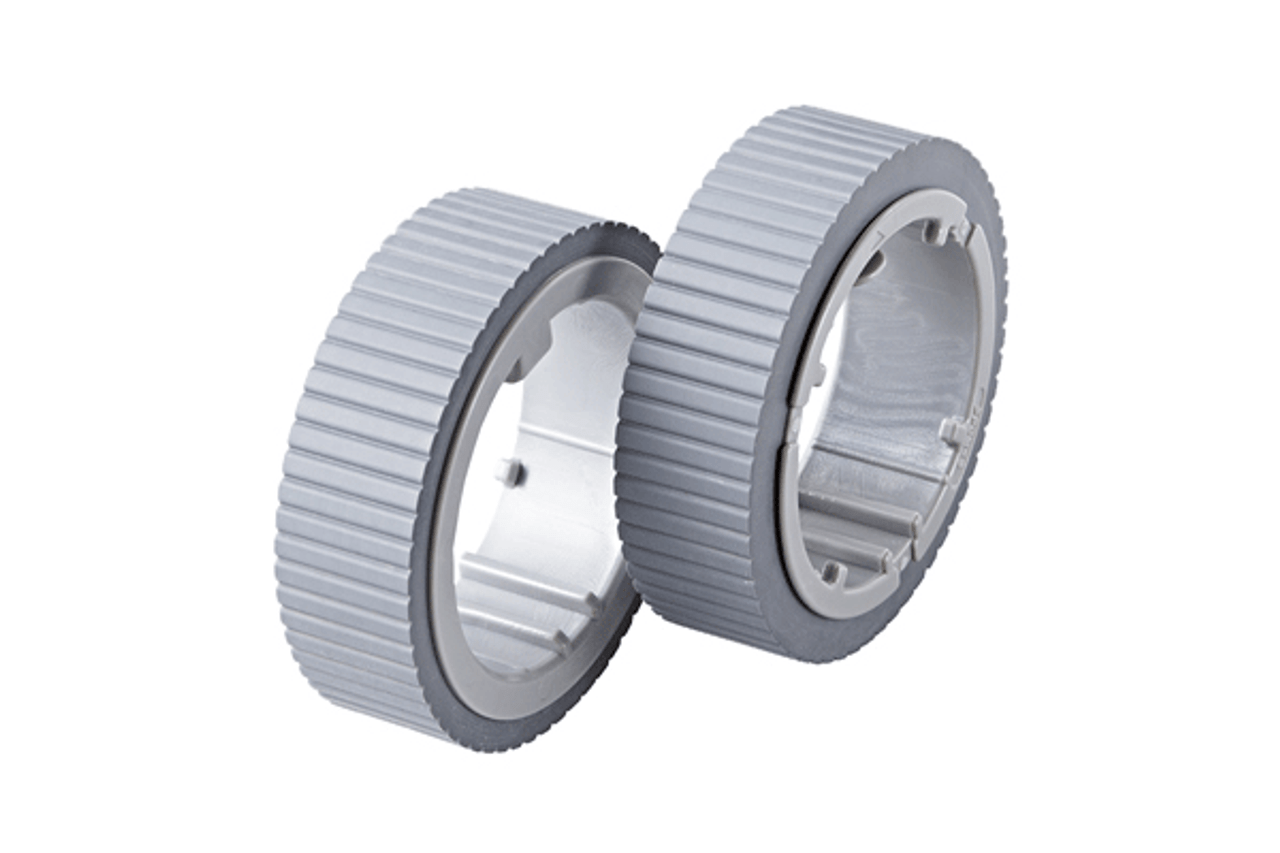
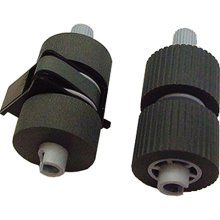
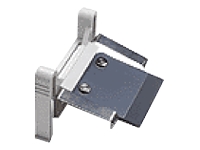
- Replace worn rollers. A worn separation roller or pad is the most common cause of double feeds that preparation doesn't cure. See pick roller replacement.
- Clear jams in the feed direction. Open the feeder cover and pull the page out the way it was travelling, then look for torn scraps left behind.
Double-feed detection
Most business scanners detect double feeds with an ultrasonic sensor that notices two layers of paper, and stop so you can rescan. Labels, sticky notes and photos attached to a page look like a double feed too. Many drivers let you ignore a known attachment, or switch detection off for one batch, instead of stopping on every page.
Still happening?
If feeding problems continue with clean, new rollers, the scanner may need service. See scanner repair; we'll help you diagnose it and refer you to an authorized service center.
Related
Lines and streaks on scans -
Scanner roller kits -
Scanner sensors
|

 Cart
Cart
 - Consumables (rollers, pads) - 0001.JPG)
 - 0001.JPG)

 - 0001.JPG)
 - 0001.JPG)



 - 0001.JPG)






 All FAQ Topics